What this thing actually is
Recipe Column Cards takes any recipe page on the internet and prints it as one card, on one page.
It's a browser extension. If that word means nothing to you, that's fine. An extension is a small tool you add to your web browser, the same way you add an app to your phone. Once it's added, a little button shows up at the top of your browser window. It sits there doing nothing at all until you click it.
This one only wakes up when you click that button. It doesn't follow you around, it doesn't change the pages you read, and it doesn't ask you to sign up for anything.
What the card looks like
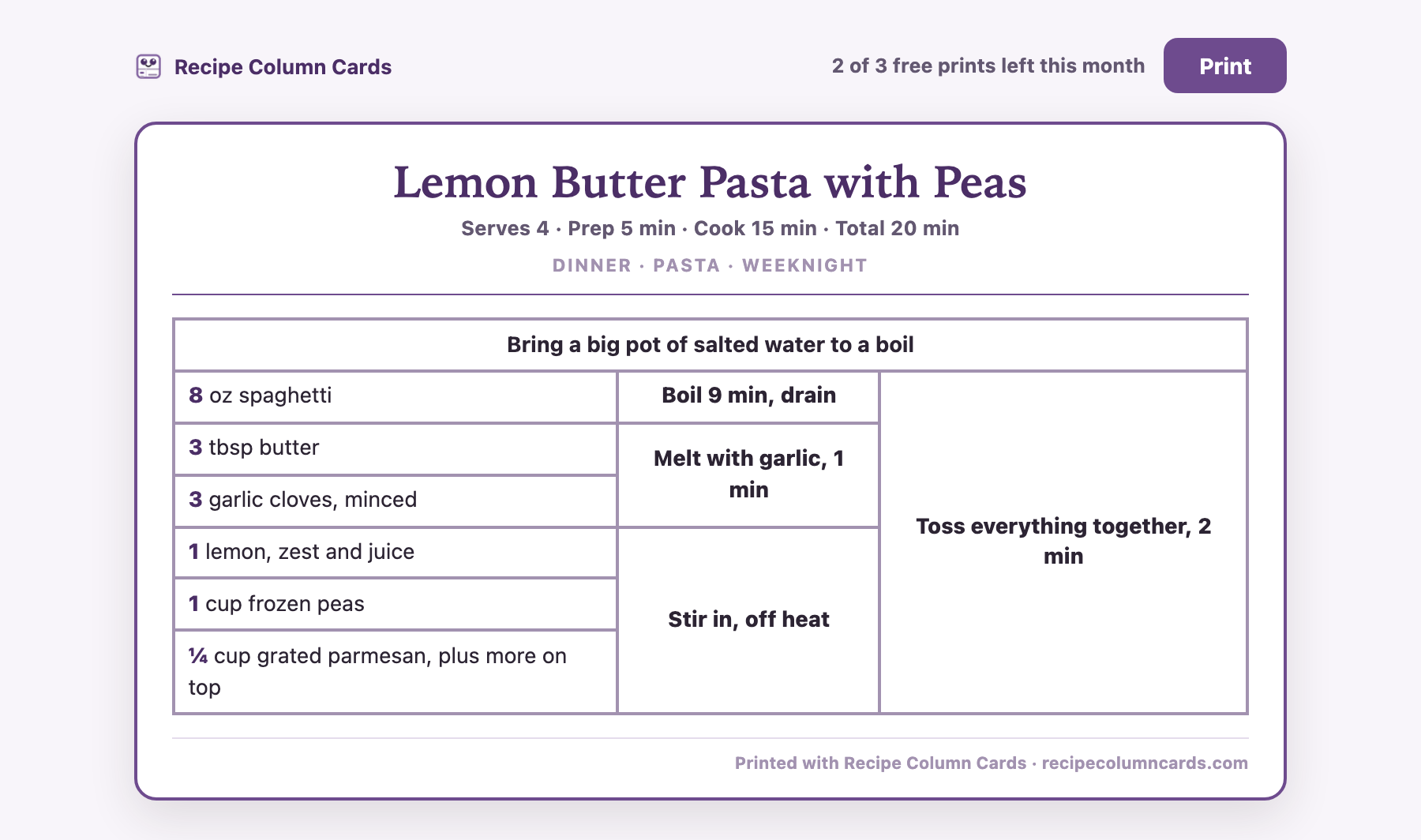
A finished card. Look at how the ingredients stack down the left and the steps run across to the right.
Reading one takes about ten seconds to learn:
- Ingredients go down the left side, one per row.
- Steps go to the right, in the order you do them.
- A tall box that covers several ingredients means "all of these go together in this step."
- Anything you do before you start, like heating the oven, sits in the strip along the top.
- Follow the boxes left to right and you land on the finished dish.
This layout is called an engineered grid. Some people see it and say "finally." Other people find it confusing and want a normal list. Both reactions are common, and you can find out which one you are for free.
What you need
- A computer running Google Chrome. A laptop or a desktop, either one. Chrome on phones and tablets can't take extensions, so this doesn't work there.
- A printer, or nothing at all. Chrome can save the card as a PDF file instead of printing it on paper.
- No account. No email address, no password, nothing to sign up for.
Step 1: Add it to Chrome

The Chrome Web Store page. The blue "Add to Chrome" button is on the right.
- Open the Recipe Column Cards page in the Chrome Web Store.
- Click the blue Add to Chrome button.
- A small box drops down asking if you're sure. Click Add extension.
That warning sounds scarier than it is. Chrome says the extension can "read and change your data on the site you're on." Every extension of this kind gets the same wording. This one reads the page you're looking at only in the moment you click its button, and only to find the recipe on it.
That's the install done. It takes about fifteen seconds.
Step 2: Pin the button so you can find it
Chrome hides brand new extensions behind a puzzle-piece button. Pin yours so it sits in your toolbar all the time.
A drawing of the top right of a Chrome window. Click the puzzle piece, then click the pin next to Recipe Column Cards.
- Look at the top right of your Chrome window, just past the address bar. Find the little puzzle piece.
- Click it. A list of your extensions drops down.
- Find Recipe Column Cards in the list and click the pin next to it.
- The little card face now lives in your toolbar all the time.
Skipping this is fine. Everything still works. You'd just click the puzzle piece first, every single time, which gets old fast.
Step 3: Print your first card
- Open a recipe page. Open the actual recipe, not a list like "25 chicken dinners." The page should be one recipe with its own ingredients and steps.
- Click the Recipe Column Cards button in your toolbar.
- A small window opens. If it found the recipe, you'll see the recipe's name and a tomato-red Print the card button.
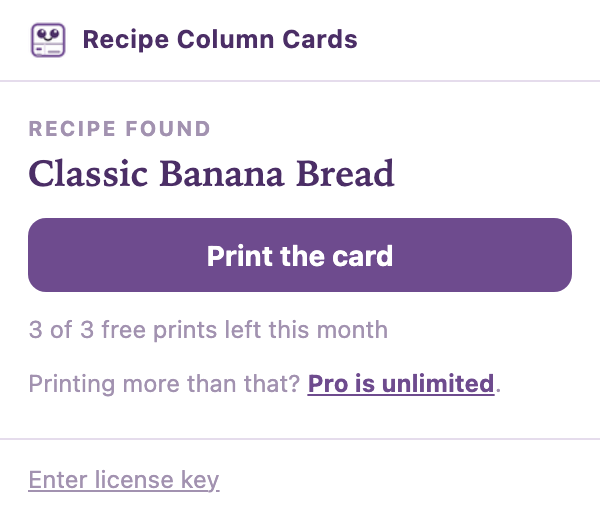
The window when it finds a recipe. The line under the button is your free-print count for the month.
- Click Print the card. A new tab opens and builds your grid. It takes a few seconds.
- When the card appears, click Print at the top right of that tab.
- Chrome's print box opens. Pick your printer, or change the destination to Save as PDF to keep it as a file instead.
Leave the print settings alone. Wide recipes turn sideways on their own so nothing gets cut off, and the card sizes itself to your paper.
One free print gets used the moment your card shows up on screen. After that, you can print that same tab as many times as you want. A paper jam, or a second copy for a friend, doesn't cost you anything extra.
What the messages mean
Recipe Column Cards talks to you in plain, one-line messages. This is what each one means.
| What you see | What it means | What to do |
|---|---|---|
| Looking for a recipe on this page... | It's still reading the page. | Wait a second. |
| Recipe found | It read the page and got the ingredients and steps. | Click "Print the card." |
| No recipe found here | This page doesn't publish its recipe in the standard form the extension reads. Roundups and homepages land here, and so does about one recipe site in ten. | Open the single recipe page and try again, or try the same recipe on another site. No free print gets used. |
| Can't read this page | You're on a Chrome settings page, a blank new tab, or something similar. Chrome blocks all extensions on those. | Go to a recipe site and click again. |
| You've printed 3 recipes this month | You've used your three free cards. | Wait for the 1st, when the count resets, or go Pro. |
| This one won't grid | The steps in this recipe don't line up into columns, usually because they jump around or the ingredients aren't tied to particular steps. | No free print gets used. Try a different write-up of the same recipe. |
| Couldn't reach the card builder | The card builder didn't answer. This one is usually temporary. | Click "Try again." No free print gets used. |
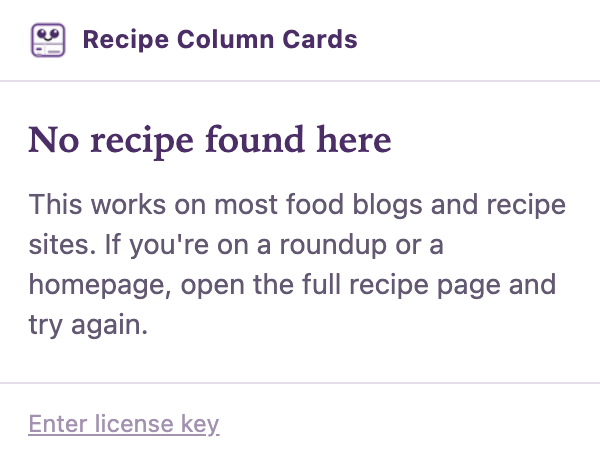
The "no recipe found" message. Nine times out of ten, you're on a roundup or a homepage instead of the recipe itself.
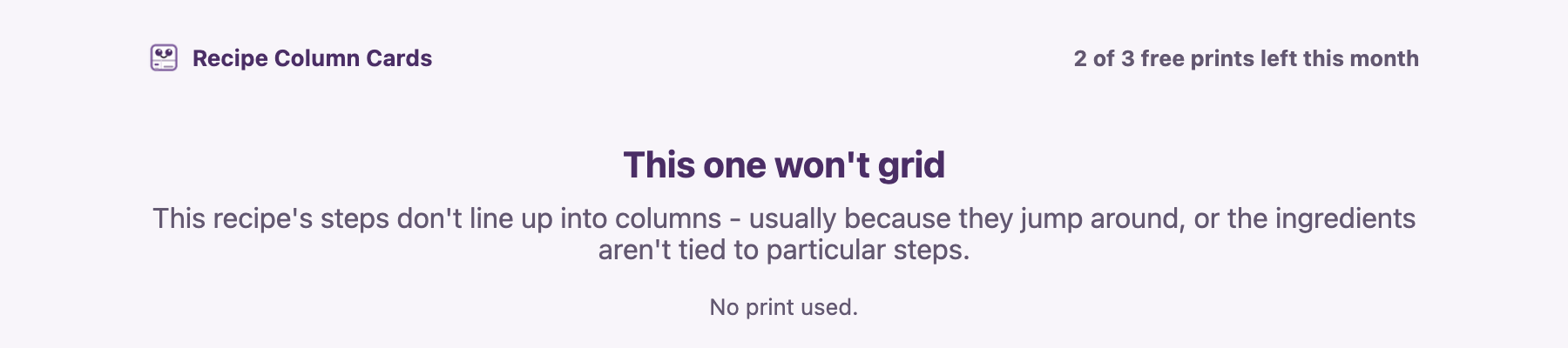
When a recipe can't be turned into a grid, you get told plainly and your free print stays in your pocket. Notice the "No print used" line.
There's no plain two-column backup card on purpose. A boring ingredients-and-directions printout is what the recipe blog already gives you. Either you get the grid or you get told why not.
When the card comes out huge
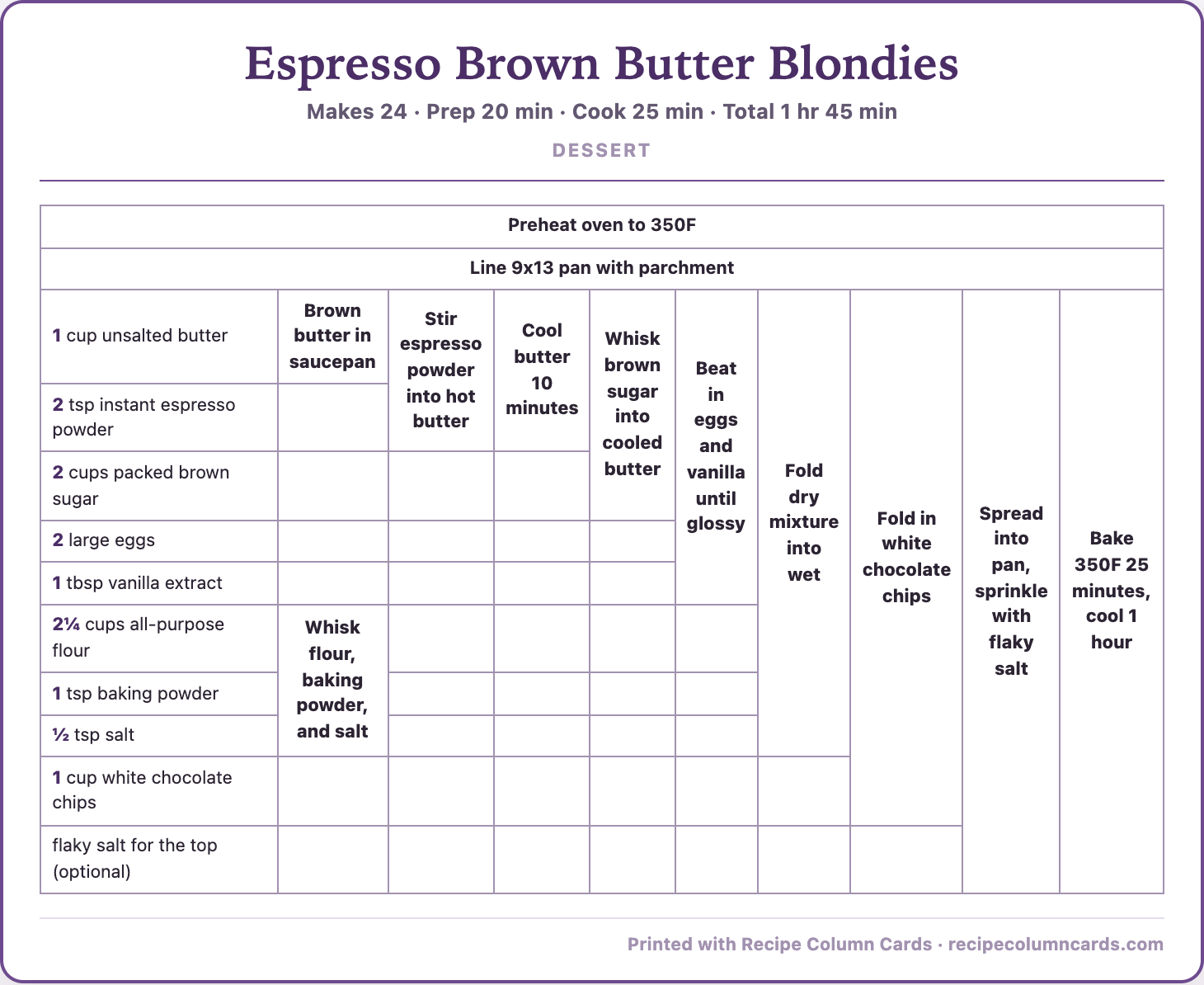
Nine step columns for one blondie recipe. Big recipe, big grid. That's the format doing its job, not a mistake.
A recipe with a lot of steps builds a lot of columns. The card turns sideways and shrinks the type so the whole thing still fits on one page.
It won't always look like a dainty little index card. Long recipes look long. If a recipe has twelve steps, you're going to see twelve steps.
Free and Pro
Free
$0
- 3 cards a month
- The count resets on the 1st
- A small line at the bottom of the card says where it came from
- No account, no email
Pro
$19 a year, or $2.99 a month
- Up to 30 new recipe cards a day. Reprints never count.
- No footer line on the card
- A license key by email that you paste in once
- Cancel any time, in one click
Where your free count lives
The count of your three cards sits inside your own copy of Chrome, on your own computer. It isn't sent anywhere, and there's no account attached to it. If you use Chrome on two different computers, each one gets its own three.
Turning on Pro
- Pick a plan in the pricing section of the home page.
- Pay through Stripe. Your card details go to Stripe, not to me.
- The page right after checkout shows your license key. It looks like RCC-XXXX-XXXX-XXXX. It gets emailed to you too.
- Click the Recipe Column Cards button in your toolbar.
- At the bottom of the little window, click Enter license key.
- Paste your key in the box and click Activate.
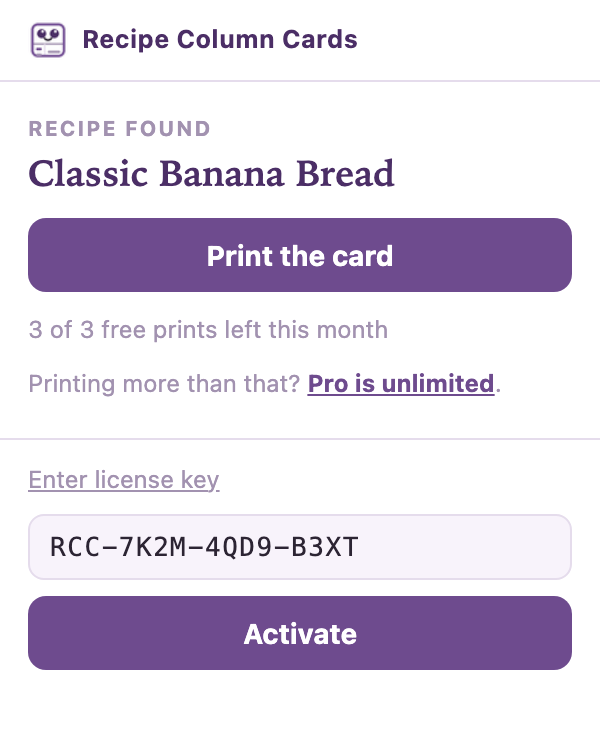
The license box lives at the bottom of the window. Paste, click Activate, done.
The line changes to "Pro is active" and Pro stays on from then on. You only do this once per computer.
Lost your key? Write support@jenbuiltit.com from the email address you used at checkout and I'll send it again.
Cancelling Pro, or changing your plan
- Go to recipecolumncards.com/manage.
- Type in your license key.
- That opens Stripe's billing page, where you cancel in one click. No emails to write, no phone calls.
After you cancel, Pro keeps running to the end of the time you already paid for. Then you drop back to three free cards a month and nothing else changes. Cards you already printed are paper. They're yours forever.
Your first ten minutes
- Thirty seconds. Add it to Chrome and pin the button.
- Two minutes. Open a recipe you already cook and print one card.
- Five minutes. Tape that card up in the kitchen and cook from it once. That's the real test, and it's the only one that counts.
A normal week
- You find a recipe you want to make.
- You click the button and print the card.
- You cook from a piece of paper instead of scrolling a phone with wet hands.
Quick answers
- Is it really free?
- Three cards a month, forever, with no account and no email address. Pro is for people who print more than that.
- Do I have to make an account?
- No. There's no account anywhere in the free version, and Pro is one key you paste in once.
- Does it work on my phone?
- No. Chrome on phones and tablets can't take extensions at all. Print from a computer and carry the paper into the kitchen.
- Does it work in Safari or Firefox?
- No. It's built for Google Chrome on a computer.
- Does my recipe get sent somewhere?
- The ingredients and steps of the recipe you're printing go to the card builder, which works out which ingredient belongs to which step and sends the layout back. Nothing else on the page is read, and there's no account or tracking riding along.
- Why did the same recipe give me a slightly different card once?
- The matching of ingredients to steps isn't a fixed rule, so early on the same recipe could group a little differently between builds. Cards are saved after the first build now, so the same recipe comes back the same way.
- Does it block ads on the recipe site?
- No. The page stays exactly as the writer published it, ads and all. This only changes what you print at home. I ran a recipe blog for years, so that one is personal.
- What if a site never works?
- About one site in ten doesn't publish its recipe in the standard form the extension reads, and there's nothing you can do about that from your side. Free prints never get spent on those, so try the same recipe somewhere else.
- Where do I ask for help?
- Write support@jenbuiltit.com. I read every one.
- Can I come back to this guide?
- Yes. It lives at recipecolumncards.com/guide and it's a good one to bookmark.
This guide was checked against the shipping extension on August 28, 2026. If something on this page doesn't match what you see, tell me and I'll fix it.